Microsoft Laptop

  • Subscribe to our RSS feed.
  • Twitter
  • StumbleUpon
  • Reddit
  • Facebook
  • Digg

Saturday, 14 September 2013

How to block advertisement using OpenWRT

Posted on 08:22 by Unknown
This is how I block advertisement at DNS level on OpenWRT.
Blocking at DNS level is advisable because it does not impact bandwidth and latency.
Simply said it tricks your computer that your loopback address is where adserver are located but cannot be found so adservers are ignored totally.
AdServers are becoming more and more of a nuisance.
  1. They serve up malware advertisement, 
  2. They load flash advertisements which waste bandwidth and increase latency. 
  3. They run javascripts to try and "take over" your web browser via redirection and popups.
If you run adblocker on client computers it becomes harder to manage when the number of client systems increase.
Fortunately OpenWRT makes this easy with the use of dnsmasq.
My web surfing experience has since greatly improved since
Here is how to do it in 2 steps(Yes it is that simple and powerful with Linux):
  1.  SSH into your router
  2. Copy and paste this Command into the terminal
wget -O /etc/dnsmasq.conf "http://pgl.yoyo.org/as/serverlist.php?hostformat=dnsmasq&showintro=1&startdate[day]=&startdate[month]=&startdate[year]=&mimetype=plaintext" && /etc/init.d/dnsmasq restart

What this script does is telling your Router to http://pgl.yoyo.org/adservers/ to get a list of known adservers in a dnsmasq friendly format and save it to /etc/dnsmasq.conf if that command is successful then restart dnsmasq.

After that you will soon notice the disappearance of many irritating advertisement when using the web .
Hopefully this improves your web surfing experience as well as let you realise and embrace the power of shell scripting.
Read More
Posted in | No comments

Saturday, 31 August 2013

Unscientific Comparison Between Router Firmwares

Posted on 01:27 by Unknown

Before you continue reading, this piece is written by a OpenWRT user so you should expect some degree of bias towards OpenWRT specifically my builds but I backed this up with data. It should be reproducible.
LAN to WAN methodology is described here.

This post is about my testing of various firmware available for TL-WR1043ND Router.
Since the Router is TP-Link branded, all comparisons will be using TP-Link factory firmware as a standard.
The performance comparison would be LAN to WAN over Gigabit Ethernet Static NAT Routing.

I tested a total of 5 firmwares:
  1. Stock TP-Link firmware
  2. DD-WRT
  3. Gargoyle
  4. OpenWRT
  5. OpenWRT with tweaks

Observations

 TP-Link firmware

My assessment on this firmware is that it is targeted as a standard multimedia Router, offering MediaServer, Samba and FTP on a Single Router.
It is a firmware with fixed flash partitions with a small sector for storing your Router settings persistently.The webserver uses a frame layout to reload only a single page, the setting page in the center. There is not much I can say about it except the Routing Performance.


It averages below 140Mbps. Performance may vary based on the running processes but by default there is very little running processes to tune so you can estimate the max to be 150Mbps. It uses the standard GCC mips cross compiler to generate the firmware which partly explains the mediocre performance. It would be suitable for users with a subscription line of 100Mbps.

DD-WRT firmware

Now DD-WRT is a very interesting software. Yes I first started on 3rd Party firmware on DD-WRT which I later moved on to OpenWRT. However DD-WRT firmware was quite interesting I took a closer look at it.
DD-WRT is structured very much like TP-Link firmware it has only 64KB fixed partition for storing user settings, although there are ways to enable optware.
All the features seen on the webserver is all the features you can access.
1 thing is for sure, it is jam packed with features. 1 feature which stock I could not find on DD-WRT but could find on stock firmware is the media server. This however does not come as a surprise, the biggest package to enable mediaserver feature is the ffmpeg codec which is impossible to fix into DD-WRT which is already jam packed with features.
When I telnet into router it shows that the router uses GCC linaro 4.8 compiler to optimize the firmware as the same as OpenWRT.
It uses some of OpenWRT's components and also a updated kernel version 3.5.7.
The web interface while it looks nice seems messy to someone using OpenWRT for a long time. By default all additional features are disabled so the Routing test below is probably the best you can get. Performance isn't bad.


It maxes at below 250Mbps so it will be good for 200Mbps lines.

Gargoyle

Gargoyle is based on OpenWRT with its own javascript based user interface on top. It prides on its control over QoS Services. It uses linaro gcc 4.6 like OpenWRT. Technically speaking it should perform around the same as OpenWRT however this is not the case as I have seen later. Some differentiating features not found by default on other firmware is the Tor routing function. It allows installation of addition software as like OpenWRT JJFS persistent storage is mounted on top of the read only squashfs but the software repository is limited. This Gargoyle firmware which I tested is based on OpenWRT Attitude Adjustment. After disabling MSS Fix a optional iptable feature which slows down routing the results are as shown.


As shown in the chart routing performance averages above 170Mbps. If a bandwidth margin is considered it would be good for 150Mbps connection.

OpenWRT Attitude Adjustment

This is the standard OpenWRT Attitude Adjustment release, it comes bare with very little features out of box. After disabling MSS fix the following result is obtained.


It averages below 250Mbps like DD-WRT so it should be good for 200Mbps line.

OpenWRT Attitude Adjustment Optimized

This is my build of OpenWRT Attitude Adjusment for WR1043ND.
Basically I added features functionally equivalent to stock firmware, added a couple of additional features like L7 filter(also found in DD-WRT but disabled by default). The build is platform specific optimized and targeted at MIP24Kc Processor. I also included Web Optimizations and Fixes and stripped out all debugging features I can find. You can either have debug or performance but not both. Basically this is OpenWRT on steroids. After many trial and error I finalised it when there is consistent observable improvement.
To make the comparison fair I disabled L7 filter and MSS fix(Actually it outperforms the rest even without it at 270Mbps!).
So below is the result of it without L7 filter and MSS fix.


So this goes to show how optimization can improve performance on embedded system. This post might invite flaming between 3rd party firmware die hard fans but I think the graphs speak for themselves.
Read More
Posted in | No comments

Saturday, 27 July 2013

Moving to OpenShift and Back to Github

Posted on 20:38 by Unknown
Moved everything related into github.
Simply Fast Convenient.
Should have done that long ago.

Attitude Adjustment TP-Link WR1043ND Backup Download
Attitude Adjustment TP-Link WR1043ND Firmware Download
Read More
Posted in | No comments

Wednesday, 22 May 2013

OpenWRT Release Tagged

Posted on 05:58 by Unknown

For users on fibre you can set port priority using swconfig
swconfig dev rtl8366rb port 1 set priority 1
To check 
 swconfig dev rtl8366rb port 1 get priority
To get it to run persistently on boot
echo 'swconfig dev rtl8366rb port 1 set priority 1' >> rc.local
This will only work on patched rtl8366rb drivers.
For unpatch openwrt firmware you have to use vconfig.

Updated to R37083

Attitude Adjustment with full ipv6 support including LuCI.
Downgrade the dhcpmasq to a non ipv6 version as the function is already added into the default Attitude Adjustment.
Review all the LuCI options and fix them, expose more wifi options.
This release is really a good one!.

For WR1043ND
"-Os  -pipe -march=24kc -mno-mips16 -mgp32 -fno-caller-saves -mno-branch-likely -mplt -msym32"

I also patched lighttpd to use
server.network-backend = "linux-sendfile"
server.event-handler = "linux-sysepoll"

This is done by patching the Makefile to enable linux-sendfile function which I do not know why it was disabled in OpenWRT's lighttpd Makefile.
I did it by #undef sendfile_broken and #define have_send_file

I managed to add the repo to github
OpenWRT  TL-WDR4300
OpenWRT TL-WR1043ND

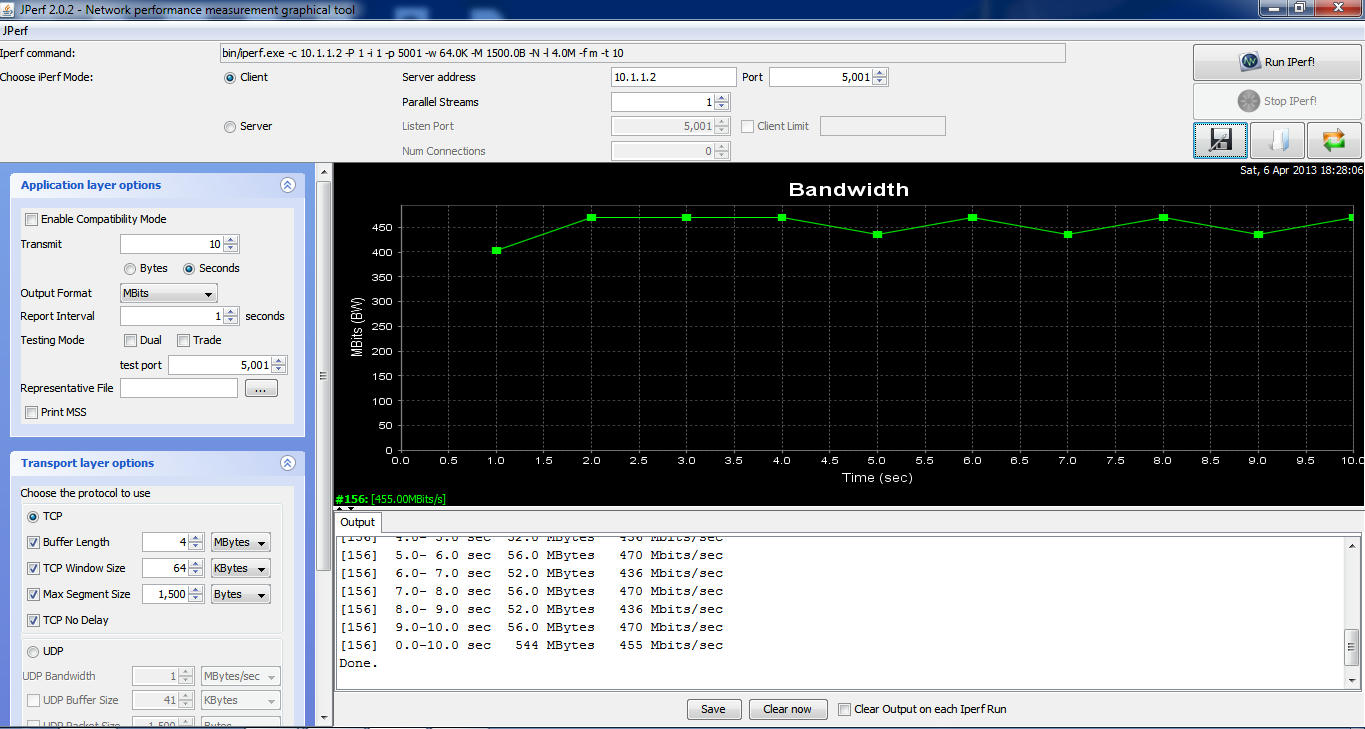
For my jperf (iperf +java frontend) I recorded increase in NAT speeds for both Routers but I would like those with highspeed internet to give me feedbacks.

Reminder: setting Wireless Region to 'US ' unlocks all "Wireless Goodness"

You can check updates on OpenWRT side using their development site.

Cheers!

Update:

Updates refreshed.
Removed Atheros Options since they are actually not support from documentation.
Integrate Jumbo Switch and Storm Filter since there are no issues.

Attitude Adjustment is Tagged and released!

I have also released a Beta version with Jumbo Frames and Storm Filtering
ssh into the router and use

swconfig dev rtl8366rb show (to display switch setting)

swconfig dev rtl8366rb set max_length 3

swconfig dev rtl8366rb set apply (apply the settings)

The rest you can figure out on your own using help option.

Note that the Jumbo Frame is a switch only option reason is that the AR9132 SoC DOES NOT SUPPORT JUMBO FRAME only the switch RTL8366RB do.

I have just release another update, changes are as follows:
-Rename some of the stuff in LuCI
-Removal of excess packages(torrents etc) now 1.8 MB left for you to install the stuff you want
  1. There is a lot of feedback from people who want to install specific packages for their own needs so the best way is to give them space to do that.
-Compress Javascript and CSS
-Update certain packages
-Rename PnP and uShare modules device information
-Remove pure-ftpd and added vsftpd with TLS
(managed to compile successfully and tested it)
  1. vsftpd with TLS does encrypted FTP using less flash and less RAM 
Added Port Monitoring Patches to the switch driver of both Routers

OpenWRT Attitude Adjustment Release For TL-WDR4300
LAN to WAN Wired Benchmark Software Routing


OpenWRT Attitude Adjustment Release for TL-WR1043ND
LAN to WAN Wired Benchmark Software Routing

With L7-Protocol and QoS (Default Configuration)


With L7-Protocol and QoS Service Stopped MSS disabled


Wireless LAN to WAN (2M Line of Sight)
With L7-Protocol and QoS Service Stopped MSS disabled
Using AES WPA2-PSK encryption 40MHZ Fat Channel, noscan enabled dtim_period=1
Basically what you can expect on Wireless.
Note: Results may vary due to interference of surrounding networks

    As usual
    Factory for upgrading from TP-LINK stock firmware to OpenWRT firmware
    Sysupgrade for upgrading from older OpenWRT version to newer OpenWRT version
    Read More
    Posted in | No comments

    Wednesday, 23 January 2013

    Fedora 18 Installation Review

    Posted on 20:08 by Unknown
    When Fedora 18 was released there was alot of negative reviews about it.
    I have to agree with a lot of these opinions.
    The LiveCD was badly done.
    The installer was pure rubbish. In making the UI Touch Friendly a lot of core features for customising the installation was removed.
    To me it was like hell freezing over for Linux. During installation I have to think 5 minutes before clicking to the next screen because I am never sure if the installer will nuke my second dual bootable partition, luckily I cautiously made it by double checking every process.
    Finally I got it pretty usable after getting through the hellish installation process.

    Stop making stupid UI and pissing off the loyal users!
    People who continue to use Linux started as noobs and learn it because it is logical not because of stupid UI that works like crap but looks good.

    I downloaded and installed KDE Spin, GNOME is crap.

    KDE understands that Tablets are in nature different from Desktops.
    They do have a Tablet Mode (it is called plasma) but it is hidden when you select the Desktop Mode.
    They do not do stupid things like unifying Touch UI and Desktop UI when their input devices and nature are completely different.

    So this post will give a general idea of how to survive Fedora 18 installation.

    Things to note:
    1) ALWAYS REVIEW the partition layout or the chance that it will nuke all other partitions is very high!

    2) Add "nomodeset" to the end of the kernel booting parameter if you are using Nvidia Drivers on computer with a Nvidia Graphics Adapter otherwise it will hang during booting.

    3) Remember to install the akmod for nvidia if you are using the Nvidia Graphics Adapter otherwise a kernel update will hang the booting process. The akmod acts as a backup nvidia kmod driver when the kernel was updated before the nvidia driver. You should install kmod-nvidia and akmod-nvidia together.

    4) Add RPMFusion repository and if you want you can install steam repository if you want to game on it

    5)Edit the file /etc/default/grub and add the following lines to get a pretty boot screen that matches your resolution.
    In this example my resolution is 1366*768 (if your resolution is different just change the values accordingly):
    GRUB_GFXMODE=1360x768x32
    GRUB_GFXPAYLOAD=keep
    GRUB_GFXPAYLOAD_LINUX=1360x768x32
    Then run grub2-mkconfig -o /boot/grub2/grub.cfg as root/sudo
    Also run dracut -f as root/sudo

    6) Finally the following software are recommended:
    • freetype-fonts
    • vlc
    • libreoffice
    • chrome
    • firefox
    • adobe-flash
    • elementary icons for a professional look
    • You can also change the plymouth to use fedup animation instead of the default. (Use plymouth-set-default-theme)
    Other than that all is well. The great thing about Linux is NO ONE can force a crap UI on you.
    If GNOME screws up go KDE etc.
    KDE allows you to configure everything to your preference, cuts your screen nicely into 4 if you need to compare different windows. An absolute joy to use.

    Note that this guide isn't an installation guide, it is more of an advice to existing Linux users about the gotchas of Fedora 18.

    Fedora 18 can be an awesome OS to use, provided you managed to get through the crappy installation. And avoid GNOME.

    Thats it hope this can help you get through to enjoy Fedora 18!
    Read More
    Posted in | No comments

    Saturday, 22 September 2012

    OpenWRT updates

    Posted on 06:57 by Unknown
    It has been a while since I have written anything, but if you notice I have been updating the OpenWRT Attitude Adjustment Builds on TP-Link WR1043ND.

    I have removed a lot of excess packages since so you can actually install the stuff you want. You can do extroot if there is still not enough.

    Upgrading the firmware is actually a piece of cake, I do it in 5 minutes.
    1) Make sure the backup utility in openwrt backs up the configuration you want.
    2) Create archive using the backup utility
    3) Flash and clear settings
    4) Log in to router update time and disable unwanted startups
    5) Upload the backup archive. Done!

    Cheers.
    Read More
    Posted in | No comments

    Friday, 1 June 2012

    Celebrate IPv6 Day with OpenWRT

    Posted on 00:05 by Unknown

    As of Attitude Adjustment and Trunk this article is no longer applicable to set up 6in4 please refer to the new guide on OpenWRT WikiPages.

    6 June is World IPv6 day.
    Major ISPs, home networking equipment manufacturers, and web companies around the world are coming together to permanently enable IPv6 for their products and services by 6 June 2012.
    However not all Internet Service Provider support IPv6 for home users, however you can still get an IPv6 connection working by creating a IPv6 in IPv4 tunnel.
    This is known as 6in4.
    Your IPv6 packets will be encapsulated in IPv4 and sent via a Tunnel Broker via Hurricane Electric.
    Hurricane Electric provides free tunnel brokers for end users. 
    TP-Link WR1043ND originally does not support IPv6 however by using the firmware Image I have compiled and share, you can create a 6in4 tunnel to enable IPv6.
    This is because I included 6in4 as well as radvd packages.
    This post will show you how to create a IPv6 tunnel broker and setup the OpenWRT router to provide IPv6 connectivity to connected wifi devices.
     
    First go to http://tunnelbroker.net/ to register & create a free account.
    After signing up, log in.
    You can create up to 5 tunnels.
    You may want to choose a tunnel server closest to your country you live in.


    After creating the tunnel click on Main Page then click on the tunnel link (boxed in red).


    You will go to this page which contains all your tunnel configuration.


    Click on Example Configuration and Select OpenWRT


    Next Open Up OpenWRT LuCI Router Configuration Page and add a new Interface:


    Name the new interface "henet"

    Configure the interface:


    Set Advance Settings:


    Set Firewall Settings

    Save and Apply.

    In Altitude Adjustment a dnsmasq has a updated version called dnsmasq-dhcpv6.
    If you want to use dnsmasq-dhcpv6 just add the 2 lines to your /etc/dnsmasq.conf
    dhcp-range=2001:1234:5678:9101::,ra-names
    enable-ra
    The bold and underline octets refers to the HENET first 4 octets.
    If you want to use radvd follow the guide below:

    Now you need to configure Radvd to advertise the IPv6 Address to connected devices.
    In OpenWRT choose Network -> Radvd


    Follow the configuration below, remember to add 1 to the third octet, this is for a /64 IPv6 address only.
    Click on the picture to zoom if you cannot see properly
     

    Lastly click on interface -> lan
    As above enter the same IPv6 address (35+1) in the IPv6 box


    Remember to restart the interface and radvd.
    You can now reconnect your wifi devices to the router.
    It should be able to acquire IPv6 Addresses.
    After that go to ipv6.google.com or www.kame.net/
    For the webpages to display correctly your browser must be able to handle IPv6 as well.
    Firefox, Internet Explorer and Chrome supports IPv6.
    Read More
    Posted in | No comments
    Newer Posts Older Posts Home
    Subscribe to: Posts (Atom)

    Popular Posts

    • Delete Windows System Files
      If you play around with Windows System Files sometimes it is not possible to delte them off after you had your fun. The following commands w...
    • Internet Explorer Tweak
      Here is a registry tweak for Internet Explorer Similar to the Mozilla Firefox tweak this enable you to increase the number simultaneous ser...
    • How to Mod your Laptop VGA BIOS
      Basically there are 2 locations where the VGA BIOS in laptops. Some OEMS embed the VGA BIOS in the EFI/BIOS in your laptops, other OEMs have...
    • Acer Phoenix BIOS Emergency Recovery
      This is for people who don't listen and interrupt the flashing BIOS for unknown reasons. This will work provided the BIOS BootBlock isn...
    • Secure Your Windows CD-Key (For Vista and 7)
      As you know everytime you activate a Windows Installation your Product Key can be retrieved via Software means. Don't believe me? Downl...
    • Changing the Acer Arcade Shortcut
      While surfing the Windows Registry (You must be thinking that I am weird =P) yesterday I found something interesting It is actually possible...
    • Some Interesting Modding Ideas
      I modded my Aspire 4530 AGAIN to control resultant temperature. Below are some ideas and pictures. Another mod idea This time a black anodi...
    • How to obtain the DSDT from your laptop
      There are many ways to rip the DSDT out of the laptop BIOS. If there is a BIOS editor it is possible to rip out the .AML file. However below...
    • Acer Aspire 4530 Boot Screen
      Acer Aspire 4530 Boot Dianogostic Screen PhoenixBIOS 4.0 Release 6.1 Copyright 1985-2008 Phoenix Technologies Ltd. All Rights Reserve 1.052....
    • List Of Modified BIOS Collection
      Here are the list of Modified BIOS Collection (mainly SLIC Mods), no warranty provided use at your own discretion! Acer Aspire 4520G BIOS Ac...

    Categories

    • 32bit
    • 64bit
    • acer
    • ahci
    • amd
    • apple
    • aspire 4530
    • aspire 4535G
    • aspire 4740
    • atheros
    • atom
    • BIOS
    • boot
    • cleanup
    • configure
    • device
    • disk
    • dismantle
    • download
    • driver
    • fan control
    • firefox
    • firewall
    • firmware
    • fix
    • flash
    • graphics
    • hwmonitor
    • internet
    • linux
    • macs
    • microsoft
    • modified
    • nvidia
    • optimize
    • overclock
    • performance
    • power savings
    • powermizer
    • proxy
    • ram
    • Realtek
    • review
    • secure
    • shortcut
    • speaker
    • synaptics
    • temperature
    • theme
    • timeline
    • tweak
    • undervolt
    • update
    • wallpaper
    • windows 7
    • windows vista
    • Windows Xp
    • winsat
    • wlan

    Blog Archive

    • ▼  2013 (10)
      • ▼  November (2)
        • A Simple How to use MiniDLNA on OpenWRT
        • OpenWRT TL-WDR3600/4300/4310 Release
      • ►  October (3)
      • ►  September (1)
      • ►  August (1)
      • ►  July (1)
      • ►  May (1)
      • ►  January (1)
    • ►  2012 (4)
      • ►  September (1)
      • ►  June (1)
      • ►  March (1)
      • ►  February (1)
    • ►  2011 (21)
      • ►  September (1)
      • ►  July (4)
      • ►  June (3)
      • ►  May (3)
      • ►  April (3)
      • ►  March (4)
      • ►  February (2)
      • ►  January (1)
    • ►  2010 (36)
      • ►  December (3)
      • ►  November (2)
      • ►  October (4)
      • ►  September (1)
      • ►  August (5)
      • ►  July (1)
      • ►  June (5)
      • ►  May (3)
      • ►  April (3)
      • ►  March (6)
      • ►  February (1)
      • ►  January (2)
    • ►  2009 (81)
      • ►  December (3)
      • ►  November (3)
      • ►  October (9)
      • ►  September (5)
      • ►  August (1)
      • ►  July (5)
      • ►  June (8)
      • ►  May (15)
      • ►  April (10)
      • ►  March (13)
      • ►  February (8)
      • ►  January (1)
    • ►  2008 (8)
      • ►  November (5)
      • ►  July (3)
    Powered by Blogger.

    About Me

    Unknown
    View my complete profile