Microsoft Laptop

  • Subscribe to our RSS feed.
  • Twitter
  • StumbleUpon
  • Reddit
  • Facebook
  • Digg
Showing posts with label amd. Show all posts

Monday, 30 November 2009

K10STAT AMD Griffin Processor UnderVolting Guide

Posted on 07:32 by Unknown


FAQ


Why UnderVolt?


Because when a lower voltage can sustain your clockspeed, a stress tested undervolt will preserve battery life and reduce heat generated without affecting your CPU performance at all !!


Zero performance handicap with less heat output and longer battery life!! (Your yield may vary)


If it is so great why manufacturers don't undervolt?


Because they manufacture processors in bulk you can't expect them to test and undervolt every single processor to the best of its capabilities!


So they simply take the a slightly higher approximate stable voltage out of the whole batch and burn the same value into every chip of the same family!


Will it spoil my processor?


No it won't, because it doesn't involve making it hotter.

In non-biological system usually heat destroys and cold preserves.

During testing, BSOD (Blue Screen of Death) is common but after a restart the Processor Voltage should restore to original value.

After finalizing the stable voltages, then you set the program to run undervolted values every startup.

I strongly recommend stress testing ALL THE P-STATES before setting up the final values so your computer will not crash when you are doing your important work (or in the middle of gaming).


Why don't you use Windows Startup to run it?


Microsoft seems to be encouraging running start-ups through Task Scheduler, not to mention Task Scheduler allows good control over program automated execution.


Which Processor is it for ?


Basically AMD K10 Series Processors.


But I am using Intel Processors?


For Core 2 Duo Processor you can use RMClock, if you are using 64bit Operating System you might need to google for 64bit libraries to replace some of the 32bit libraries. You can google it up.

For Core i3/5/7 users, I haven’t heard of any undervolting tool but I personally seen in the BIOS/EFI ACPI P-State Control is Unlockable, so BIOS/EFI modding is a possible solution.


But I am using AMD TL Series and below Processors ?

Use RMClock as well refer to “But I am using Intel Processors”.

Older AMD Processors should be supported by RMClock.


Getting Started


Firstly download K10STAT from here (I didn't make this program).

I Extracted it to C:\Program Files\K10STAT (K10STAT is 64bit and 32bit capable as well)

Configure K10STAT


When you run K10STAT you should see the menu above.

You can set a maximum of 5 Profiles.


FID: The multiplier for the Processor

(FID doesn't work in AMD Multiplier Locked Processors)


DID: The P-State of the Processor

Note all Processors supported by K10STAT uses K10 Power Design


CPU-Voltage:


That is what we are interested in.

To set the voltage for P0 simply select P0 and select the corresponding voltage and apply.

Remember: Min 0.75 V Max 1.2 V!

Caspian CPUs maybe able to run lower than 0.75V

For me -0.05V is the Max Stable voltage for P0 state any lower it BSOD!


Up%:


This is the amount of CPU usage load before the processor changes P-State from high (eg.P3) to low (eg.P2)  to meet the minimum load requirements.

Currently it is set at 60% meaning it will switch from P2 to P1 when processor detect 60% CPU load and the same applies from switching from P1 to P0.


Down%:


It is basically the opposite of Up %

This is the amount of CPU usage load before the processor decrease P-State to meet the minimum load requirements.


Up (milliseconds):


It is the time delay the processor takes to switch from one P-State to the next higher performance P-State.


Down (milliseconds):


It is basically the opposite of Up.

It is the time the processor takes to switch from one P-State to the next lower performance P-State.


After you have set suitable values (-0.05 recommended on first try).


Use Windows Processor Power Management to test different levels.


Use 4 Windows as shown above, to monitor all the P-States so it is more convenient to access the values and monitor the states.


First remember to enable K10STAT Clock Control


To test simply click on the Core of the P-State immediately the Processor will assume the P-State.


Test each P-State by running Intel Burn In (Google and Download) or any suitable CPU loading tool.


For me the voltage values that passed Intel Burn In test are 1.075V, 0.850V and 0.750V.


At 1.025V, it BSOD after 2 mins.

At 1.0372V-1.050V it produced the wrong result.


Test all P-States you have modified so it won’t crash whenever the CPU switches to any of them.


To pass LinPack, the result calculated by the CPU must be consistent.

After you have affirmed the stable voltage values then you may proceed to set it to start automatically.


Setting K10STAT for StartUp


Open Task Scheduler by accessing Start Menu\All Programs\Accessories\System Tools\Task Scheduler


Create a Task


Alternatively you can make it run as a SYSTEM task (as shown below)


If you want the K10STAT icon to appear in the systray run the program under your user account.

If you run it as SYSTEM account the program will run too(in the background) but it will not be visible in the systray.

Click "Change User or Group" then Enter "System" then choose "Check Names" then select OK.


or you can create it as a startup process as shown below. (RECOMMENDED because it will run before a logon is required)


**Please note a file called K10stat.dat containing the undervolt settings will be created in the C:\Windows\System32 folder because it is the default path for admin rights unless you changed the "Start In (Optional)" parameters, the setting just under the "Add Arguments (Optional)" parameters as shown below.


The program will load the settings from K10STAT.dat so make sure all the changes are written to the file.

When you launch K10STAT manually a new K10STAT.dat will be created in C:\Program Files\K10STAT which Task Scheduler WILL NOT LOAD.

It will only load the K10STAT.dat in C:\Windows\System32 unless you change the "Start In" parameters to "C:\Program Files\K10STAT".


If you do not specify “Start In” parameters, the file “K10stat.dat” will be created in C:\Windows\System32 (Default Administrator Path) as shown below.


The following arguments are available (Source: http://dsus4.blog126.fc2.com/blog-entry-3.html)


Command Line Option

-lp:#(1-5) - load profile#(1-5) and write to MSR.


-nw - Start K10stat with No Window.


-ClkCtrl:#(0-4) - Enable Clock Control by K10stat.


0: No Control

1: Control clock of each core.

2: Control clock of all cores together (Criterion is most loaded core).

3: Control clock of all cores together (Criterion is average of all cores).

4: Control clock of all cores together (Criterion is least loaded core).

If you set -ClkCtrl:2 you get slightly better performance at the expense of more power consumption because the processor increases P-States together rather than independently.


Because Windows proceed on the assumption that cores are unganged by default on the RM/ZM Series processor.

Whether it is ganged by default is dependent on the hardware design.


AMD K10 Processors were designed originally to use unganged mode to conserve power.


-StayOnTray - use this option with -nw for Clock Control Mode.(Note after a sleep if the CPU MSR registers are resetted, voltages will revert to default, hence you need -StayOnTray to ensure it is always running in the background)

e.g.Target:

"C:\Program Files\K10stat\K10STAT.exe" -lp:1 -ClkCtrl:2 -StayOnTray -nw


Finally you can Control your CPU using the K10STAT Systray if you enabled -StayOnTray manually as well.


-ClkCtrl:#(0-4) - Enable Clock Control by K10stat (Refer to above).


0:No Control


1:Control clock of each core.

UnGanged means each CPU Core #0 & #1 operates independently of each other so at any one time their frequency and DID could be different.(This is the original intent of the design of the Turion Chips as they are given different power planes.)


2:Control clock of all cores together (Criterion is most loaded core).

This means the CPU will raise/drop the DID of Core #0 & #1 together when it detects the one of higher Core has reached the criteria for a Frequency boost or Throttle Down.


3:Control clock of all cores together (Criterion is average of all cores).

This means the CPU will raise/drop the DID of Core #0 & #1 together when it detects the average of both core has reached the criteria for a Frequency boost or Throttle Down.


4:Control clock of all cores together (Criterion is least loaded core).

This means the CPU will raise/drop the DID of Core #0 & #1 together when it detects the one of lowest Core has reached the criteria for a Frequency boost or Throttle Down.


A new function called Lock-P-state is available in new versions of K10Stat.


It is another way you can lock the P-state for P-state testing again you should enable Clock Control before performing the P-State Testing.


Down Core refers to switching off 1 of the Cores either Core0 or Core1.


Testing


__________________________________________________________________


Original Factory Default Settings

_________________________________________________________________________
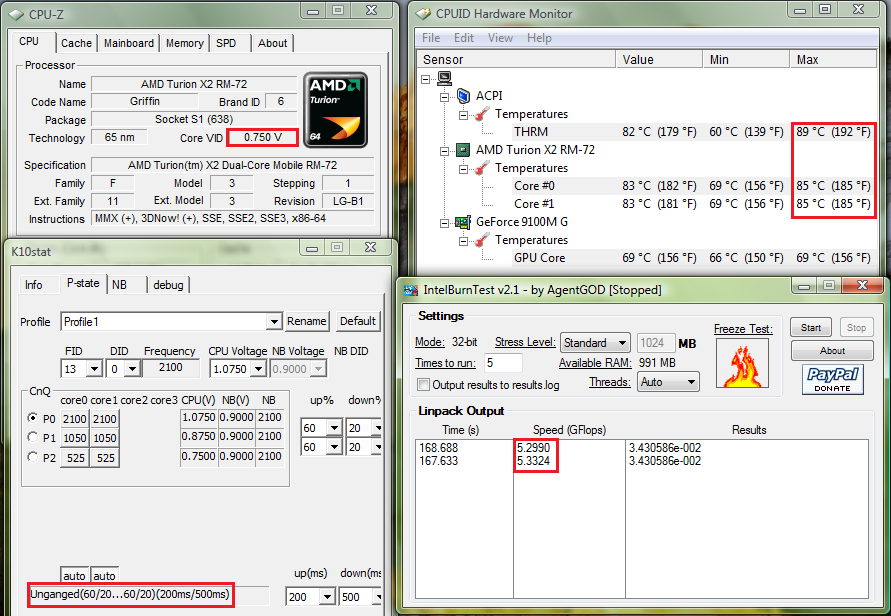


UnderVolted 1.075V


In Unganged Mode

__________________________________________________________________


UnderVolted 1.075V


In Ganged Mode (Based on highest core)

__________________________________________________________________


Thats All !


AMD Technical Documentation Regarding Turion Processors here


(Contains Temperature Limits P-States and Voltages)

Read More
Posted in amd, overclock, power savings, undervolt | No comments

Sunday, 7 June 2009

UnderVolting AMD Griffin Processor

Posted on 04:04 by Unknown

Edit:
You can read continue to read this as a guide but this is a better tool IMHO.

I chanced upon this site : http://amd.goexchange.de/

This is a new Tool designed to undervolt AMD Griffin ZM/RM/QL/SI Processors.
The program is free for home users (However you are encouraged to donate as it is a lot of work) and it is not free for business users


1)Why Undervolt?
In short conserve power (Battery Life) and reduce thermal emission (Overheating) with no effect on Computing Performance for more info check on the previous link.

2)For Intel Processors and AMD TL and older Series Mobile Processors RMClock is able to overclock them.

However no tool was available to underclock CPU until this tool was release.

How to use?

The documentation on the site is very lengthy and rather confusing.
I was confused first time I read it.

A very simplified guide as follows:

1) Create a folder in Program Files.
eg. Create C:\Program Files\GriffinControl

2) Download the files required (scroll down a bit you should see 2 files each for 32bit and the other 2 files for 64bit) and extract them to the folder you created in 1).

3) Open the GriffinControl_config.xml with notepad (the author provided a skeleton configuration file) .

You will only be looking at the following column and the values in bold
Note QL/SI Processor only should have 2 pstate number (I think it is 0 and 1 , no 2 not sure about this).
How do you go about setting voltage?

Basically AMD ZM/RM Series Processors has 3 Power State.

A full state runs at max frequency when you need the processing power it throttles up to maximium frequency giving you the computation power you need.
This is pstate number 0 which is 100% of the total CPU Power.
pstate number 1 is 50% of the total CPU Power.
pstate number 2 is 25% of the total CPU Power.

If you set too low a voltage the CPU will not run stably due to unsufficient voltage and cause BSOD.

For QL/SI Processor you only have 2 pstate, 0 & 1.
pstate number 0 which is 100% of the total CPU Power.
pstate number 1 is 50% of the total CPU Power.

How do you know the default voltages for the CPU?
Either you run CPUZ as shown by the picture at the end of this entry.
Then use Vista Processor Power Management to throttle at different percentages to find the 3 or 2 voltage level depending on what processor you have.
If you are not sure you can leave a comment at the end of this entry I will recommend values for you to try.
Another way is to refer to the config file provided with the downloads.

4)Reference this table for the list of Voltage ID.
eg. The value 42 as shown above translate to 1.025V and so on.

(Note the lowest VID is 64 no lower values will work and value above 36 can fry your processor )

Edit the values to the voltage you want.

For my RM-72 Processor, I tested 64,52 and 42 is the most extreme stable values.
Which translate to: 0.750V, 0.900V and 1.025V respectively.
Original Voltage: 0.800, 0.950V and 1.075V respectively.
A difference of 0.05V, 0.05V,0.05V , any higher it BSODS

Change the values accordingly and save.

6)Run GriffinControlService_32bit.exe for 32bit Windows and GriffinControlService_64bit for 64bit Windows.
Follow instruction and create the Windows Service if you encounter an error message you did something wrong.
Go to Services Menu and Start the Service if you ever want to delete the service you must stop it first (using the same manner, stopping it instead of starting it)
If you are doing testing make sure the service is set to manual start instead of Automatic so after BSOD it will default to original value and not BSOD repeatedly I learned this the hard way.
If you did not listen to me and it BSOD repeatedly, when it is possible to get to Windows Either start with last saved configuration or try to switch to Power Saver Mode in Vista Power Plan so it will not cause BSOD again.Don't worry no physical damage is done to the processor.

7) Run a CPU stressing Tool like Intel Burn In make sure no BSOD happens when running the tool so the voltage is stable. Use the Vista Processor Power Management to test the different Power States.
Set to auto start service if you are happy with the final setting.

This program is very well created especially when the author implemented it as a windows service, so donate to the author if you are able to.

Special Thanks to the author, now my CPU Voltage Temperature Dropped by a lot at max frequency.

Proof that it works!

Edit: The Service hung on Vista and created a Windows Event Log (no error message) so I set it to Delay Start and the problem went away.

At the end of the process the result of undervolting implies AMD chips are indeed overworked in order to catch up to Intel Processor Performance, the undervolted amount of 0.05 at max frequency implies this.
Any further undervolting results in BSOD.

Just encountered another BSOD raise voltages by 0.025

Finally whenever you encounter a hardware BSOD (read the message on the BSOD) just raise the voltage by 0.025.
Eg. when you BSOD on youtube you probably need to raise p-state 1 and p-state 2 by 0.025
My guess is when the CPU changes state from 2 to 1 it switches too quickly therefore insufficient voltage to support the boost hence it BSOD.
Read More
Posted in amd, aspire 4530, download, optimize, tweak, undervolt | No comments

Friday, 29 May 2009

AMD Processor Driver and Dual Core Optimizer For WinXp

Posted on 11:09 by Unknown
Important

Laptops using AMD Processors which is operating on Windows Xp please note you have to install the following:


AMD Processor Driver Version 1.3.2.0053 for Windows XP & Windows Server 2003 (x86 and x64)
Allows the system to automatically adjust the CPU speed, voltage and power combination to match the instantaneous user performance need. This package is a user friendly localized software installation of the driver designed for end-users. This driver supports AMD processors on Windows XP SP2 and Windows Server 2003 SP2 x86 and x64 Editions.


And


AMD Dual-Core Optimizer Version 1.1.4 (Mirror Download)
The AMD Dual-Core Optimizer can help improve some PC gaming video performance by compensating for those applications that bypass the Windows API for timing by directly using the RDTSC (Read Time Stamp Counter) instruction. Applications that rely on RDTSC do not benefit from the logic in the operating system to properly account for the affect of power management mechanisms on the rate at which a processor core's Time Stamp Counter (TSC) is incremented. The AMD Dual-Core Optimizer helps to correct the resulting video performance effects or other incorrect timing effects that these applications may experience on dual-core processor systems, by periodically adjusting the core time-stamp-counters, so that they are synchronized.


It is required to save power and reduce the thermal exhaust

The reason it is required is at the time of Windows Xp release these Drivers were not included

Windows Vista users just need to install AMD Dual-Core Optimizer Version 1.1.4

There has been some question if AMD Dual-Core Optimizer is really needed.
This is what I found out in the Readme.rtf in AMD Dual-Core Optimizer :
---Improvement and Fixes---
Version 1.1.4
* Fixed installation issue on Windows Vista.
---System Requirements---
* Microprocessor: AMD Athlon™ 64 X2 Dual-Core Processors
This software installs and operates under the following operating systems
* Microsoft® Windows® XP
* Microsoft Windows Server 2003
* Microsoft Windows Vista
The rationale is if it was not needed in Vista why would they fix it?
Read More
Posted in amd, driver, Windows Xp | No comments

Sunday, 15 March 2009

Power Savings With Power Plan

Posted on 09:25 by Unknown
After using CPU-Z for a while you will notice that the CPU Core Voltage is actually not a constant value

For my AMD Turion X2 RM-72 Processor (Differs according to Processor Model)
P-State 1 is 2.100GHZ @ 1.100V
P-State 2 is 1.025GHZ @ 0.950V
P-State 3 is 0.525GHZ @ 0.800V
This is because when Clock Frequency is reduced Processor no longer requires more power to maintain stability. This is the main operating principal behind Quiet & Cool Technology

<--Credit to ComputerBase.de-->

If you check the diagram above you will notice while there are 3 P-States for RM & ZM Processors, there are only 2 available to QL & SI Processors.

Hence this indicates during idle RM & ZM Processors save more power than QL & SI Processors as they are able to go into deeper, more power saving P-States.

Hence if you are thinking about getting AMD Powered Laptop look out for ZM & RM Processors only and don't go for QL Processors since QL Processors are similarly priced for poorer Power Savings.

To take full advantage of the AMD Processor Power Saving Capability in Vista
You should create 3 Power Plans

Set Maximum Processor state to 100%, 50% and 25% for 3 different Power Plans
This will cap the Maximum CPU Voltage to 1.100V , 0.950V and 0.800V respectively
(This is for reference purposes only as different CPU has different Voltage Levels)

For example when you are surfing the internet while running on battery you might want to choose power plan that caps voltage at 0.800V to save more power.

You can argue that the processor is already doing the throttling automatically hence there is no need to interfere however, occasional CPU spikes can occur to push the frequency. Therefore by limiting max frequency you are limiting the power usage explicitly.

Another advantage you will get is that the CPU Core temperature will fall below 50 degrees if you HWMonitor it

You may think 500MHZ will lag your system, but remember this is 500MHZ Dual Core Turion Processor.
Moreover on Acer Aspire 4530, the Windows Vista Desktop rendering is offloaded to the Nvidia 9100M G GPU hence there is little or no load on Vista as compared to any Intel Graphics Solution.

However do note when running different Applications consider the Processing Power requirements. Otherwise you might encounter slow performance.
Streaming video like youtube requires higher performance or you will encounter frame skips on the videos.

The above is for Windows Vista which supports more flexible and advance Power Settings

For Windows Xp you will need a third party program Speedswitch XP as suggested by AMD Forumer Turion64Ultra

As the instructions on SpeedSwitch Xp is available on it homepage I will leave the exploration of this third party software to people who are interested

Read More
Posted in amd, power savings | No comments

Thursday, 6 November 2008

Does AMD Optimizer Actually Speed up the CPU?

Posted on 08:30 by Unknown
Ok here is what AMD Claims that their Optimizer do:

AMD Dual-Core Optimizer Version 1.1.4 - The AMD Dual-Core Optimizer can help improve some PC gaming video performance by compensating for those applications that bypass the Windows API for timing by directly using the RDTSC (Read Time Stamp Counter) instruction. Applications that rely on RDTSC do not benefit from the logic in the operating system to properly account for the affect of power management mechanisms on the rate at which a processor core's Time Stamp Counter (TSC) is incremented. The AMD Dual-Core Optimizer helps to correct the resulting video performance effects or other incorrect timing effects that these applications may experience on dual-core processor systems, by periodically adjusting the core time-stamp-counters, so that they are synchronized.

AMD Optimizer in Windows Runs as a Service amd_dc_opt.exe

I tested the difference by disabling the service to simulate without Optimization & reenable the service to simulate with Optimization
The results are as shown below using PC Wizard 2008 as a benchmark available here


Benchmark Result With AMD Optimzer using CPU Calculations


Benchmark Result with AMD Optimizer Overall Performance


Benchmark Result without AMD Optimzer using CPU Calculations


Benchmark Result without AMD Optimizer Overall Performance

From the result it can be seen that there is no real optimzation for CPU Calculation and Overall Performance
For Overall Performance the performance change is a 1.5% drop
For CPU Calculations the performance change is a 7.3% drop
It seems that by disabling this feature processing power would be ramped up

However do note that from the Overall Performance Chart
The video performance went up to 2.4% when optimization is enabled
And note the description from AMD Site:
(The AMD Dual-Core Optimizer helps to correct the resulting video performance effects or other incorrect timing effects that these applications may experience on dual-core processor systems, by periodically adjusting the core time-stamp-counters, so that they are synchronized.)

So it seems that the Optimizer did really perform as expected however CPU scores are affected as a result and many complains was the increase in heat generated from the system when optimzer is enabled.
My opinion is that a small increase in performance is not a great exchange for the heat generated that can potentially damage the system and cripple the CPU
Moreover I personally do not play games frequently I will probably keep out this software for a while.
Read More
Posted in amd | No comments
Older Posts Home
Subscribe to: Posts (Atom)

Popular Posts

  • Delete Windows System Files
    If you play around with Windows System Files sometimes it is not possible to delte them off after you had your fun. The following commands w...
  • Internet Explorer Tweak
    Here is a registry tweak for Internet Explorer Similar to the Mozilla Firefox tweak this enable you to increase the number simultaneous ser...
  • How to Mod your Laptop VGA BIOS
    Basically there are 2 locations where the VGA BIOS in laptops. Some OEMS embed the VGA BIOS in the EFI/BIOS in your laptops, other OEMs have...
  • Acer Phoenix BIOS Emergency Recovery
    This is for people who don't listen and interrupt the flashing BIOS for unknown reasons. This will work provided the BIOS BootBlock isn...
  • Secure Your Windows CD-Key (For Vista and 7)
    As you know everytime you activate a Windows Installation your Product Key can be retrieved via Software means. Don't believe me? Downl...
  • Changing the Acer Arcade Shortcut
    While surfing the Windows Registry (You must be thinking that I am weird =P) yesterday I found something interesting It is actually possible...
  • Some Interesting Modding Ideas
    I modded my Aspire 4530 AGAIN to control resultant temperature. Below are some ideas and pictures. Another mod idea This time a black anodi...
  • How to obtain the DSDT from your laptop
    There are many ways to rip the DSDT out of the laptop BIOS. If there is a BIOS editor it is possible to rip out the .AML file. However below...
  • Acer Aspire 4530 Boot Screen
    Acer Aspire 4530 Boot Dianogostic Screen PhoenixBIOS 4.0 Release 6.1 Copyright 1985-2008 Phoenix Technologies Ltd. All Rights Reserve 1.052....
  • List Of Modified BIOS Collection
    Here are the list of Modified BIOS Collection (mainly SLIC Mods), no warranty provided use at your own discretion! Acer Aspire 4520G BIOS Ac...

Categories

  • 32bit
  • 64bit
  • acer
  • ahci
  • amd
  • apple
  • aspire 4530
  • aspire 4535G
  • aspire 4740
  • atheros
  • atom
  • BIOS
  • boot
  • cleanup
  • configure
  • device
  • disk
  • dismantle
  • download
  • driver
  • fan control
  • firefox
  • firewall
  • firmware
  • fix
  • flash
  • graphics
  • hwmonitor
  • internet
  • linux
  • macs
  • microsoft
  • modified
  • nvidia
  • optimize
  • overclock
  • performance
  • power savings
  • powermizer
  • proxy
  • ram
  • Realtek
  • review
  • secure
  • shortcut
  • speaker
  • synaptics
  • temperature
  • theme
  • timeline
  • tweak
  • undervolt
  • update
  • wallpaper
  • windows 7
  • windows vista
  • Windows Xp
  • winsat
  • wlan

Blog Archive

  • ▼  2013 (10)
    • ▼  November (2)
      • A Simple How to use MiniDLNA on OpenWRT
      • OpenWRT TL-WDR3600/4300/4310 Release
    • ►  October (3)
    • ►  September (1)
    • ►  August (1)
    • ►  July (1)
    • ►  May (1)
    • ►  January (1)
  • ►  2012 (4)
    • ►  September (1)
    • ►  June (1)
    • ►  March (1)
    • ►  February (1)
  • ►  2011 (21)
    • ►  September (1)
    • ►  July (4)
    • ►  June (3)
    • ►  May (3)
    • ►  April (3)
    • ►  March (4)
    • ►  February (2)
    • ►  January (1)
  • ►  2010 (36)
    • ►  December (3)
    • ►  November (2)
    • ►  October (4)
    • ►  September (1)
    • ►  August (5)
    • ►  July (1)
    • ►  June (5)
    • ►  May (3)
    • ►  April (3)
    • ►  March (6)
    • ►  February (1)
    • ►  January (2)
  • ►  2009 (81)
    • ►  December (3)
    • ►  November (3)
    • ►  October (9)
    • ►  September (5)
    • ►  August (1)
    • ►  July (5)
    • ►  June (8)
    • ►  May (15)
    • ►  April (10)
    • ►  March (13)
    • ►  February (8)
    • ►  January (1)
  • ►  2008 (8)
    • ►  November (5)
    • ►  July (3)
Powered by Blogger.

About Me

Unknown
View my complete profile