Microsoft Laptop

  • Subscribe to our RSS feed.
  • Twitter
  • StumbleUpon
  • Reddit
  • Facebook
  • Digg
Showing posts with label Windows Xp. Show all posts

Friday, 2 July 2010

Fuss Free Computing

Posted on 07:00 by Unknown
I hear a lot of stories regarding the state of Windows users find themselves.
However you can be certain that 90% of the time it is the users' fault.
I have another article on how to maintain the longevity of the hardware but this post specifically aims to teach you how to maintain the state of your operating system.
It is tried and tested on my system therefore I don't see how it is not applicable to anyone else.
Ok here goes

Rule 1: Don't install any software you don't know

I know it is difficult since they let you download for FREE right? No.
Only download reputable software from reputable sources.
Do not install software that forces you to download and run it to access certain resources.
A lot of freeware advertised in banners are either spyware or malware in their own rights.
Good software spreads by the word of mouth. Ask your IT-Savy friends for advice on Freeware.


Rule 2: Do Not Download & Run Files not expected from friends

Do not assume that mail coming from friends are safe. Some Malware do spread from contact list so unless you are expecting the mail and or attachments from friends just trash the mail. You can tell whether the mail is genuine from the way the text is phrase as well.

Rule 3: Less is more

Contrary to freebies in computing more software = less performance.
If we take a logical approach, more software = more code/data to be executed.
Assuming processing is constant,  performance drops. Logical?
So install what you actually will use and software that brings real benefits to your computing experience, avoid programs that tries runs itself on startup because it brings delay to boot time execution.

Rule 4: Only Optimization is Windows Optimization

Out of the so many Windows optimization the only real optimization is the Windows built in ones.(You can find the optimization below documented in documents published in WHDC (Windows Hardware Developer Central).
Open Command Prompt with Elevated Rights & type the following:
C:\Windows\System32)Rundll32.exe advapi32.dll,ProcessIdleTasks
You will see harddisk lights light up as Windows started optimizing itself.
It is safe to assume that it is completed once Harddisk Activity lights ceases.
Next run Windows Defragmenter 
Open Command Prompt with Elevated Rights & type the following:
C:\Windows\System32)Defrag C:\ /v /u
The /v /u flags will inform you about the status of completion.
Finally Open Command Prompt with Elevated Rights & type the following:
C:\Windows\System32)Defrag C:\ /v /u /b
The /b flag will tell Windows to perform an optimization known as boot optimization to reduce boot time.
Some other Optimization does the same optimization as documented by Microsoft so installing them is like doubling the work so you actually do not need to install any third party software optimizer.
However Windows Defragmenter is a necessary evil inherent because of the way NTFS, Microsoft File System allocates Disk space, defragmentation is the only solution to defragment non-contiguous files especially after a lot of reinstalls and uninstalls.

Rule 5: Delete the "Setup.exe" after installing

Whenever you download and install a software like Firefox you get a installer called Setup.exe. If I were to use an analogy it is like the packaging whenever you buy a product after you take out the product you can throw the box away. Over time these EXEs built up when you install software wasting unnessary space on the harddisk. Just like your real house do some house keeping on your harddisk.

Rule 6: Do Not Install Toolbars

This is a fair new occurrence you see many software publishers offering toolbars for Web Browsers some come bundled with "freeware". In any case Do Not install them.
Why? Because the Web Browsers Authors do not specifically test the toolbars to work properly alongside the browsers. There is no guarantee it will not affect your browser in any negative manner.

Rule 7: Disable AutoRun & AutoPlay

 Even though Microsoft beefed up Windows Security with UAC and malware that auto launches itself from the thumbdrive can still cause some unnecessary damage. If you need to launch an executable just launch it manually and save yourself the unnecessary risk of a malware attack. To disable it just access Control Panel click on AutoPlay and disable it for all devices. If autoplay is disable NO MALWARE can attempt to launch itself into your system unless you launch it manually.


Lastly to get a free and good anti-virus look no further than Microsoft Security Essentials.
Why do I recommend this software because it is free for every Genuine Windows, and updates are tested before release.
I believe you heard horror stories of 3rd party Anti-Virus killing your Operating Systems.
1)I believe that Microsoft test their definition files and patches before release.
2)A good anti-virus isn't overly suspicious. Microsoft Security Essentials have good detection rate but at the same time it isn't overly zealous like a suspicious policeman thinking every citizen is a potential criminal like some other 3rd party OS.
3)I have tried MSE and it plays nice on Windows Vista and  above Operating System without being a resource hog. Some people believe that a Security Software should protect us against all know threats even drive by sites but I believe an Anti-Virus software is the last line of defense against malware, users safe surfing and computer usage habits is the FIRST defence. Just following the few simple rules should guarantee a fuss free computing even on Windows. Paying more for Macs isn't the solution, sure using a less common OS might reduce the chance of encountering malware since the malware programmers tend to target the majority but ultimately it is the usage habits that matters.
Read More
Posted in windows 7, windows vista, Windows Xp | No comments

Thursday, 10 June 2010

Weaning off Windows Xp

Posted on 04:21 by Unknown
This article is dedicated to "Techies" who think they can get better performance by "upgrading" from Windows 7 to Windows Xp on their new laptops.
In fact they are downgrading from Windows 7 to Windows Xp.
Personally I think it is not a smart idea there are many reasons.

1)Windows 7 support ACPI 3.0 which is what programmed in many EFI of new laptops. Windows Xp doesn't support ACPI 3.0 so it will revert to older ACPI versions when installed so you lose some advance power optimization with Windows Xp.

2)Driver support you have to spend time hunting down obselete drivers for Windows Xp and Microsoft no longer provides updates to Windows Xp (Except Security Holes).

3)Legacy Functionality in Xp compared to Native Support in Windows 7.
When Xp was out WiFi was still not mainstream, Microsoft enabled WiFi by including a Client in 1 of their Service Packs. It is a hack to emulate Wireless Device as a Ethernet Device so WiFi can be used.
Windows 7 has WiFi Client built in so it is more of a part of OS than a dirty hack. Besides WiFi many features in Windows 7 is native while an add on in Windows Xp.

4)Security, UAC love it or hate it UAC provides better configuration of policy and security settings compared to Windows Xp.

5)For those new processors Windows 7 include NUMA support. You realise Intel and AMD removed the legacy Front Side Bus (FSB) and introduced their high bandwidth bus (Intel-QPI Quick Path Interconnect, AMD-HT HyperTransport) because FSB limits CPU scalability performance improvement.

It is a known fact x86 CPUs get better performance and power saving by increasing the number of processing cores rather than increasing the frequency so by reverting to Window Xp you are removing NUMA optimization from your laptop.

6)Windows 7 utilises the GPU to render Desktop so CPU can be left idle for more responsiveness. While Windows Xp driver architecture doesn't allow this so you are still using CPU to render the desktop.

7)Windows 7 has a finer grained power control policy than Windows Xp so you can save more power in Windows 7 than Xp it is a proven fact just google for some benchmark. In other words Windows 7 has better power efficiency.

Lastly the amount of changes from Windows Xp to Windows Vista to Windows 7 is so great that my blog can't cover everything.

If you still insist by installing Window Xp you get better performance let me ask you this: What is most important in an OS?
Pure Performance? If so you must as well install Windows NT on your Hardware it will practically fly along but why not?

Because a good OS is one that balance performance as well as functionality. Sure Windows Xp performs in someways because it has less services, less executable code but compare this to Window 7 where you get both performance and feature if you do a clean install, which is better?
Read More
Posted in windows 7, Windows Xp | No comments

Thursday, 1 October 2009

How To Choose What Laptop System To Get?

Posted on 09:14 by Unknown
Basically there are only a few questions you need to ask.
1.Size

How big you need your laptop to be?
Keep in mind size is related to weight, the smaller the laptop the lighter it usually is.
<12.1>
13.1 inches (Mainstream Laptops)
14.1 inches (Mainstream Laptops)
15.1 inches (Mainstream Intensive Gaming Laptops)
16.1 inches (Desktop Replacement)
>16.1 inches (Desktop Replacement)

Usually if you need to move it around 14.1 -15.1 inches would be around the max for mobility.

2.Usage

Processor

Intel

For Intel Processor typically it is easily identified
Intel Core i (Processor Class Number) - (3 Digit SKU Number)(Alphabet 1)(Alphabet 2)

The Processor Class Number is either 3/5 or 7.
3 refers to the low end Processors
5 refers to the mainstream Processors
7 refers to the high end Processors
The 1st Digit SKU Number refers to the instruction set in the Processor.
3X0 means
  1. No Intel® Turbo Boost Technology,
  2. No Intel® Virtualization Technology for Directed I/O (VT-d), 
  3. No Intel® Trusted Execution Technology, 
  4. No AES New Instructions
4X0 means
  1. No Intel® Virtualization Technology for Directed I/O (VT-d), 
  2. No Intel® Trusted Execution Technology, 
  3. No AES New Instructions
5X0 and above
  1. All Instruction Set Supported
The 2nd Digit refers to the different Frequency of the Processor Family

For the alphabet there are a number of fixed Alphabets
M - Mainstream
Q - Quad Core (4 Cores, 8 Threads, No Intel HD Graphics due to high TDP)
X - Xtreme (Unlocked Multiplier)
U - Ultra Low Voltage (Low Frequency + Low Voltage)
L - Low Voltage (Low Voltage only)
E - Embedded (Not Upgradable)
AMD

For AMD Processor it is not as easy.

Generation Griffin
Identifier:
AMD (Model) X(No. of Cores) (SKU Alphabet)-(Frequency Identifier No.)(Odd/Even Last Digit)
  1. Turion refers to high end model
  2. Athlon refers to mainstream model
  3. Sempron refers to low end model
X2 refers to Dual Core

Ultra refers to Total 2MB L2 Cache otherwise 1MB L2 Cache or less.

ZM refers to Turion Processor with 3 Power State
RM refers to Turion Processor with 3 Power State
QL refers to Athlon Processor with 2 Power State
SI refers to Total 512 KB Cache with 2 Power State
Frequency Identifier No. starts from 4X to 8X.
  1. RM-70 starts from 2GHZ (Every 2 increase Frequency Increase by 100MHZ ) Odd Last Digit refers to an increase in HyperTransport Frequency from the Even Digit SKU  
  2. RM-80 starts from 2.1GHZ (Every 2 increase Frequency Increase by 100MHZ ) Odd Last Digit refers to an increase in HyperTransport Frequency from the Even Digit SKU  
  3. V refers to Low Voltage Processor
Generation Caspian
Identifier:
AMD (Model) (Generation II) Ultra (No. of Cores) (Type Alphabet) (3 Digit SKU No.)
  1. Turion refers to high end model
  2. Athlon refers to mainstream model
  3. Sempron refers to low end model
Generation II refer to K10 Architecture

Ultra refers to Total 2MB L2 Cache otherwise 1MB L2 Cache or less.

Type Alphabet
  1. M refers to Mainstream
  2. L refers to Low Voltage
3 Digit SKU
6XX refers to Turion Ultra Series Starting from 2.4 GHZ, every increment in 20 increase by 100MHZ with 5 Power States
5XX refers to Turion Series Starting from 2.2 GHZ, every increment in 20 increase by 100MHZ with 5 Power States
3XX refers to Athlon Series Starting from 2.0 GHZ, every increment in 20 increase by 100MHZ with 3 Power States
Note Starting Frequency of L Series differ from M Series

Generation Champlain
 
The Generation Caspian adds Quad Core Mobile Processor to the market.

Identifier: X NNN
X is either X for Black Edition (Unlocked Multiplier 45 Watt TDP ), N for MainStream (35 Watt TDP) & P for MainStream Lower Power Consumption (25 Watt TDP), V for Low End (25 TDP Single Core).

1st Digit refers to SKU
9 - Quad Core with 21.3GB/s HyperTransport
8 - Triple Core with 21.3GB/s HyperTransport
6 - Dual Core with 21.3GB/s HyperTransport
5 - Dual Core with 17GB/s HyperTransport
3 - Dual Core with 64bit Floating Point Unit (I suspect it is the old Caspian Refresh) (All the new Champlain should have 128Bit Floating Point Units) 17GB/s HyperTransport
1 - Single Core with 64bit Floating Point Unit

All Champlain Generation has 0.5 MB L2 Cache per CPU Core.

Graphics (For Gaming GPU > CPU)

For occasional gaming get at least some decent graphics from Nvidia, ATi.
For Intel Graphics if you must at least go for 3150,4500MHD or the new Intel HD Graphics.
They have Video Codec Decoding Abilties for Adobe Flash 10.1.
For ATi any Radeon HD will do, DO NOT go for Radeon Xpress they are obselete.
For Nvidia, go for anything below 8000 Series. 7000 series are obselete.
Both Nvidia 7000 Series and Radeon Xpress do not support GPU computing and DirectX 10
Use Notebookcheck as a rough guide for gaming performance.
Class 3, Class 2, Class 1 are suitable for occasional gaming.

For more intensive gaming consider getting Class 2 and Class 1 Graphics however they are most available only on 14.1/15.1 inch and above laptops.
Reason being more powerful graphics requires more powerful fansink these contributes to size hence usually they can only be found on 14.1 inch and above systems.

RAM
I don't really bother as it is very easy and cheap to upgrade laptop RAM.
You get more cost saving upgrading RAM yourself than buying a high RAM laptop.

Harddisk
Size is of no concern as they come with at least 120GB and that is more than sufficient.

Edit:
With regards to how good a laptop is in terms of quality you have to look at the design layout.
1) Google the motherboard prints of the particular laptop
2) Heatsink size must be sufficiently large enough particularly for AMD Processor Laptops and those with Nvidia/ATi GPU, larger mass allows higher heat capacity so temperature will not be too high.
The GPU, CPU and Northbridge must not be too close to each other.

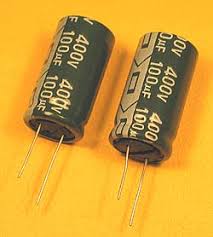
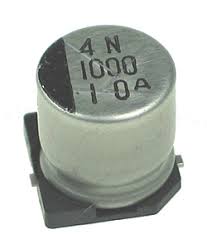
3) The capacitors must be of high quality

High Quality Capacitor
Lower Quality Capacitor

Read More
Posted in windows 7, windows vista, Windows Xp | No comments

Friday, 24 July 2009

How to protect your computer from malware infested thumbdrive

Posted on 08:11 by Unknown
I have seen virus infected thumbdrives especially on computers that is poorly administrated (i.e. Users given administrative privilege) and especially when the users have no clue of the dangers of internet and downloads suspicious files with executable extensions.
Combine this with not-so-frequently updated anti-virus software it is a foregone conclusion malware infection will occur.

This will lead to frequent system crashes and poor Windows Experience and end of the day people usually point fingers at Microsoft etc and not themselves as the cause of malware infection.

As the system gets laden with more and more viruses system crashes and lag occur as the malware attempts to make unauthorised connection to the internet depending on what it was originally designed for.
Most virus do not attempt to disable the computer for obvious reasons.
They want to stay undetected so they can steal data from the infected host or simply use the host as part of a bot network, however things get ugly when more different viruses comes into play.

A virus will compete with other programs including other Virus for system resources if the computer do not have sufficient resource to feed them lag occurs if other viruses attempt to interfere with system files hijacked by other viruses a clash will resulting in system crash and Blue Screen Of Death.

Malware spread via a number of medium Internet as well as Removable Drives.
As the topic is fairly big I shall only focus on how to prevent Virus on thumbdrive from entering your host system.

First of all when I insert a thumbdrive a good anti-virus will attempt to scan it, if the Virus signature match it database it wil immediately isolate the file to prevent it from running as shown below.

The good news is even if you don't have anti-virus you can prevent them from running and see if the thumbdrive is infected .

Lets take a look at the infected thumbdrive.
Go to Folder Options and make the following changes to enable you to see all the files present on a thumbdrive.
Select "Show Hidden Files and Folders"
Uncheck "Hide Extension For Known File Types"
Uncheck "Hide Protected System Files and Folders"
If you have a Linux/BSD/Solaris System Partition you can boot in it and attempt to take a look into your Windows Partition, all the System Files in the C:\ will show up (including both important Windows System Files and Malware).


Malware usually obscure themselves as system files so you will not be able to spot them if you do not set the setting shown above.
Take note REAL system files will also reveal themselves so DO NOT delete files if you are not sure they are Windows System Files or not.
Deleting Windows System Files can cause System to be UNBOOTABLE.

Soon you can see other virus showing up.( Note:SPENSER.EXE is no longer on the drive as the Anti-Virus removed it)


A strangely named file can be seen above probably another virus which attempted to copy itself to the thumbdrive but SPENSER.EXE beat it to hijacking of the autorun.inf so it doesn't do anything.

As I have said Viruses hijack system files for them to perform misdeeds on thumbdrive they usually hijack autorun.inf.
Note: autorun.inf is originally a system file to enable users to autolaunch installation programs upon insertion of removable drive.

Lets take a look at the infected thumbdrive's autorun.inf (Right Click Open with Notepad).

If you remembered earlier the system anti-virus detected SPENSER.EXE
Look at how SPENSER.EXE hijacked the autorun.inf in order to auto launch itself upon insertion of the thumbdrive.

So how can you prevent this?
It is simple. Simply disable autorun in Xp or autoplay in Vista.
If autoplay/autorun is disabled the system will ignore the autorun.inf hence preventing the virus from runnning effectively and if you remember Virus hide themselves as System Files so you will never launch it accidentally.
However this is only for generic virus.
Some Virus are powerpoint or word macros programmed so disable Macro in Office Software will do the trick.
Read More
Posted in windows 7, windows vista, Windows Xp | No comments

Friday, 29 May 2009

AMD Processor Driver and Dual Core Optimizer For WinXp

Posted on 11:09 by Unknown
Important

Laptops using AMD Processors which is operating on Windows Xp please note you have to install the following:


AMD Processor Driver Version 1.3.2.0053 for Windows XP & Windows Server 2003 (x86 and x64)
Allows the system to automatically adjust the CPU speed, voltage and power combination to match the instantaneous user performance need. This package is a user friendly localized software installation of the driver designed for end-users. This driver supports AMD processors on Windows XP SP2 and Windows Server 2003 SP2 x86 and x64 Editions.


And


AMD Dual-Core Optimizer Version 1.1.4 (Mirror Download)
The AMD Dual-Core Optimizer can help improve some PC gaming video performance by compensating for those applications that bypass the Windows API for timing by directly using the RDTSC (Read Time Stamp Counter) instruction. Applications that rely on RDTSC do not benefit from the logic in the operating system to properly account for the affect of power management mechanisms on the rate at which a processor core's Time Stamp Counter (TSC) is incremented. The AMD Dual-Core Optimizer helps to correct the resulting video performance effects or other incorrect timing effects that these applications may experience on dual-core processor systems, by periodically adjusting the core time-stamp-counters, so that they are synchronized.


It is required to save power and reduce the thermal exhaust

The reason it is required is at the time of Windows Xp release these Drivers were not included

Windows Vista users just need to install AMD Dual-Core Optimizer Version 1.1.4

There has been some question if AMD Dual-Core Optimizer is really needed.
This is what I found out in the Readme.rtf in AMD Dual-Core Optimizer :
---Improvement and Fixes---
Version 1.1.4
* Fixed installation issue on Windows Vista.
---System Requirements---
* Microprocessor: AMD Athlon™ 64 X2 Dual-Core Processors
This software installs and operates under the following operating systems
* Microsoft® Windows® XP
* Microsoft Windows Server 2003
* Microsoft Windows Vista
The rationale is if it was not needed in Vista why would they fix it?
Read More
Posted in amd, driver, Windows Xp | No comments

Thursday, 14 May 2009

Reformating & Disk Erasure of Harddisk

Posted on 07:29 by Unknown
For some of you who seldom perform OS re installation you might not know the differences clearly.
First, reformatting is usually done when the operating system is corrupted beyond repair.
Usually when your machine is bogged down a lot of malware, reformatting solves the issue faster than finding fixes for each malware.
Personally, I prefer reformatting because certain types of malware corrupts System Files beyond repair.
What reformatting does is that it destroys the partition tables and recreate them.
In Windows it would be C:\ partition.
The old data is still present but it is no longer readable by normal methods as all the references to the old data is overwritten (It is like the content page is destroyed hence the book appears as new because all indexes are gone, the old data is still present but there is no link to access them properly) but this is a "as good as new" for end users who want a new OS installation.

Disk Erasure Tools is usually used by organizations with highly sensitive information.
Tools such as DBAN or Secure Erase removes all traces of data by overwriting the whole hard disk with other data.

Differences between DBAN and Secure Erase
  • DBAN writes by Sector therefore when bad sectors are redirected data erasure maybe incomplete. However Secure Erase writes by Cylinders so complete data erasure is guaranteed.
  • DBAN takes a longer time compared to Secure Erase.
Why is this so?

Secure Erase is the standard included by hard disk manufacturers to clear sensitive data as a feature requested by governmental organizations.

Quoted from the Data Sanitisation Tutorial

Complete eradication of user data off drives can be accomplished by running data Secure Erasure utilities such as the freeware “HDDerase” downloadable here. It executes the Federally-approved (NIST 800-88) Secure Erase command in the ATA ANSI standard, which is implemented in all recent ATA drives greater than 15-20 GB. A similar command in the SCSI ANSI standard is optional and not yet implemented in drives tested. Normal Secure Erase takes 30-60 minutes to complete. Some ATA drives also implement the standard Enhanced Secure Erase command that takes only milliseconds to complete.

It uses a standard ATA set hard disk native instruction set to wipe the entire drive quickly.

You might have heard that 1 or 2 pass of overwriting might not be enough to clean the hard drive however this is not true as nowadays hard disk comes in high density capacity.
For a similar sized hard disk 5-10 years ago it can only contain like 30 or less GBs.
Hence when you overwrite such high capacity hard disk it is impossible to recreate the original data.

An analogy I can think of would be you have 2 trays of coloured arranged sand, one fine, one coarse.
If you imagine each particle to be data, if I substitute half with sand particles of another colour randomly, the tray with the fine sand will look more messed up then the tray with coarse particles.

Sdelete is like a DBAN inside Windows.
What it does using the -c (clean command) is it takes all the unused hard disk space and overwrites them.
You can also use it to overwrite the data region for a particular file.
Usually when you delete something in Windows it only remove the reference to the file and marks the region from occupied to unused.
When you use sdelete, it will remove the reference to the file and overwrites the region with random data before marking it from occupied to unused.

I hope you understand more about hard disk from this simple introduction.
Read More
Posted in disk, windows 7, windows vista, Windows Xp | No comments

Thursday, 30 April 2009

Windows 7 Wallpapers (Include Latest RC)

Posted on 02:18 by Unknown
Here is the Updated Windows 7 wallpaper Collection

The latest release it up to RC (Release Candidate)

I have place the Original Windows 7 Wallpapers + RC Wallpapers + Windows 7 Beta Wallpapers into one zip file.

I have also rename & tag some of them to avoid file clashing with the original Vista Wallpaper.

After you download you can safely extract them to
C:\Windows\Web\Wallpaper
They will not overwrite your original Vista Wallpapers.

Download them here

If you are using Windows Xp and would like to download Vista Wallpapers,click here

You can simply extract them to your Wallpaper Folder they will not overwrite your original Wallpapers or the Windows Vista Wallpapers as well.
Enjoy
Read More
Posted in download, wallpaper, windows 7, windows vista, Windows Xp | No comments

Windows Vista Wallpapers

Posted on 01:46 by Unknown
For Windows Xp/Windows 7 users who wish to have the Vista Wallpapers Collection, I have uploaded them here 

If you are interested in Windows 7 Wallpaper, click here

If you are using Windows 7 please rename the files before extracting to your Windows 7 Wallpaper Collections.
Read More
Posted in download, wallpaper, windows 7, windows vista, Windows Xp | No comments

Tuesday, 28 April 2009

Aspire 4530 AHCI Driver Installation for Window Xp

Posted on 20:49 by Unknown
I found a Solution for loading AHCI drivers for Windows Xp when installing Windows Xp on Aspire 4530
  • Download this AHCI Driver and extract it into a Floppy Disk or Thumbdrive (Untested).
  • When installing Windows Xp when the message "Press F6 to load additional Driver".
  • Press F6 and Load the AHCI Driver from Disk and Windows Xp should detect the harddrive in AHCI Mode.
Read More
Posted in ahci, aspire 4530, driver, Windows Xp | No comments

Friday, 20 March 2009

Vista Cursor For Windows Xp

Posted on 08:58 by Unknown
I am sure Xp users are bored of seeing Hour Glass after a while
I have Linked 2 Sets of Vista Cursor
( I didn't make any of them and I have forgotten where I got this from)


Vista Cursor Black
Vista Cursor Blue

  • Extract the file to a folder
  • Right Click the Install.inf and Select Install
  • Go to Mouse Property in Control Panel
  • Select the newly installed Mouse Cursor Set
  • Apply then Save the Cursor Set
And you are done !


Read More
Posted in download, theme, windows vista, Windows Xp | No comments

Sunday, 15 March 2009

Explaining Windows Xp/Vista Startup

Posted on 03:54 by Unknown
Note: This is applicable to BOTH Windows Xp and Vista as msconfig is present in both OS

Another reason why Windows Boot are often very slow because Programs Add themselves to the startup automatically making Windows Start the Programs on EVERY boot whether you need it or not

Start>> Run>>Type "msconfig" >> Enter

You should see this

To disable a particular startup simply uncheck the box next to the entry

If you want to remove a particular entry from msconfig scroll to the left you should see the following

The box in Red indicates the location of the registry entry which the program you installed added in order to start automatically

To remove it
Start>> Run>> Type "regedit" >> Enter

Navigate to the location in Red

You should see something like this:

To remove the entry from msconfig simply delete it from here
  • Always make sure the program you removed is non-essential otherwise certain important third party program will not run
An example from the above is "NvCplDaemon" which is actually Nvidia Graphics Control Panel
  • Unless you really don't need it, it is safer to disable startup from msconfig rather than deleting the registry entry
Read More
Posted in optimize, windows vista, Windows Xp | No comments

Monday, 2 February 2009

Maximising Vista Indexing

Posted on 10:54 by Unknown
For those Tech Savy readers you might have heard of advices such as turning off Windows Xp Indexing Services
This is true for the old Indexing Search feature for Windows Xp
The new Indexing feature in Vista is a much improved feature
It is also available for Windows Xp by a different name Windows Search 4.0
For Windows Xp users you need to download it here

You can speed uo performance by making Windows Search Index only Important & Critical Folders
Here is how to do it:


You need to add C:\Windows and C:\Program Files to the list of Index Location.

(If you have a lot of Programs installed do not index C:\Program Files as it will cause high harddisk activity.)

So Windows will be able to locate files for launching or boot much faster


After that you need to let Windows idle so it will start indexing all locations
After Indexing is complete you are done !
Read More
Posted in optimize, windows vista, Windows Xp | No comments

Tuesday, 29 July 2008

Free Windows Themes and TuneXP

Posted on 22:14 by Unknown
Besides LINUX and UNIX system i also happen to know some good Windows Tools that everyone should have in their PCs
Note the following tools only works in Windows XP
1)TuneXP From Driver Heaven Final Version no other updates 3 Mirrors list below
http://www.driverheaven.net/dforce/
http://www.download.com/TuneXP/3000-2086_4-10290929.html
http://www.softpedia.com/get/Tweak/System-Tweak/TuneXP.shtml
This nifty little tool provides a simple and non intimidating GUI to activate some functions in Xp to speed it up. Although it is possible to activate the tweak from Windows Registry often i find it too tedious to do it manually not mentioning the possibilty of messing up your Registry.
It is small in size, freeware and most tweaks works especially the faster shutdown function. However the usefulness of the ultrafast booting really leave much to be desired. Anyway it is really a useful tool even for non tech savy users.
2)Themes for Windows XP
I know some really good free themes on the net. They are 1)FREE 2)NO SPYWARE/ADWARE/MALWARE I SCANNED them myself 3)LOW ON SYSTEM RESOURCES USAGE 4)UNINSTALLS WITHOUT SCREWING UP YOUR SYSTEM
1) BricoPacks from CrystalXP contains Light Vista looks KDE looks Longhorn Looks
http://www.crystalxp.net/bricopack/
2) FlyKiteOSX from http://osx.portraitofakite.com contains Mac OS X for PC users
http://www.flyakiteosx.com/download/
3) Alienware theme from Alienware (a high performance PC vendor) It is not exactly freeware because it contains WindowsBlind Software which is not free BUT this edition is free intended for Alienware customers. I am not their customers but oh well it is free anyway...
Click on the picture "Click here to download AlienGUIse"
http://www.alienware.com/community/alienguise/theme-manager.aspx
4)Nvidia theme from NVIDIA (a video card maker) Same as above it is a it also contains WindowsBlind Software which is not free BUT this edition is free intended for NVIDIA customers but this time I am their customer both my laptop and PC uses NVIDIA Cards
http://www.nvidia.com/content/areyouready/downloads.html
1)ComCast XP website
Last but not least for this post I know a particular website containing lots of information and freeware pertaining to Windows XP.
It debunks a lot of XP myths and has a Large collection of useful software that are free license
Must check it out
http://home.comcast.net/~SupportCD/OptimizeXP.html
Know any other good website that have great Windows software that are free?
Feel free to put them up here
Next Posting will be PowerTools for Power Users
Read More
Posted in Windows Xp | No comments
Home
Subscribe to: Posts (Atom)

Popular Posts

  • Delete Windows System Files
    If you play around with Windows System Files sometimes it is not possible to delte them off after you had your fun. The following commands w...
  • Internet Explorer Tweak
    Here is a registry tweak for Internet Explorer Similar to the Mozilla Firefox tweak this enable you to increase the number simultaneous ser...
  • How to Mod your Laptop VGA BIOS
    Basically there are 2 locations where the VGA BIOS in laptops. Some OEMS embed the VGA BIOS in the EFI/BIOS in your laptops, other OEMs have...
  • Acer Phoenix BIOS Emergency Recovery
    This is for people who don't listen and interrupt the flashing BIOS for unknown reasons. This will work provided the BIOS BootBlock isn...
  • Secure Your Windows CD-Key (For Vista and 7)
    As you know everytime you activate a Windows Installation your Product Key can be retrieved via Software means. Don't believe me? Downl...
  • Changing the Acer Arcade Shortcut
    While surfing the Windows Registry (You must be thinking that I am weird =P) yesterday I found something interesting It is actually possible...
  • Some Interesting Modding Ideas
    I modded my Aspire 4530 AGAIN to control resultant temperature. Below are some ideas and pictures. Another mod idea This time a black anodi...
  • How to obtain the DSDT from your laptop
    There are many ways to rip the DSDT out of the laptop BIOS. If there is a BIOS editor it is possible to rip out the .AML file. However below...
  • Acer Aspire 4530 Boot Screen
    Acer Aspire 4530 Boot Dianogostic Screen PhoenixBIOS 4.0 Release 6.1 Copyright 1985-2008 Phoenix Technologies Ltd. All Rights Reserve 1.052....
  • List Of Modified BIOS Collection
    Here are the list of Modified BIOS Collection (mainly SLIC Mods), no warranty provided use at your own discretion! Acer Aspire 4520G BIOS Ac...

Categories

  • 32bit
  • 64bit
  • acer
  • ahci
  • amd
  • apple
  • aspire 4530
  • aspire 4535G
  • aspire 4740
  • atheros
  • atom
  • BIOS
  • boot
  • cleanup
  • configure
  • device
  • disk
  • dismantle
  • download
  • driver
  • fan control
  • firefox
  • firewall
  • firmware
  • fix
  • flash
  • graphics
  • hwmonitor
  • internet
  • linux
  • macs
  • microsoft
  • modified
  • nvidia
  • optimize
  • overclock
  • performance
  • power savings
  • powermizer
  • proxy
  • ram
  • Realtek
  • review
  • secure
  • shortcut
  • speaker
  • synaptics
  • temperature
  • theme
  • timeline
  • tweak
  • undervolt
  • update
  • wallpaper
  • windows 7
  • windows vista
  • Windows Xp
  • winsat
  • wlan

Blog Archive

  • ▼  2013 (10)
    • ▼  November (2)
      • A Simple How to use MiniDLNA on OpenWRT
      • OpenWRT TL-WDR3600/4300/4310 Release
    • ►  October (3)
    • ►  September (1)
    • ►  August (1)
    • ►  July (1)
    • ►  May (1)
    • ►  January (1)
  • ►  2012 (4)
    • ►  September (1)
    • ►  June (1)
    • ►  March (1)
    • ►  February (1)
  • ►  2011 (21)
    • ►  September (1)
    • ►  July (4)
    • ►  June (3)
    • ►  May (3)
    • ►  April (3)
    • ►  March (4)
    • ►  February (2)
    • ►  January (1)
  • ►  2010 (36)
    • ►  December (3)
    • ►  November (2)
    • ►  October (4)
    • ►  September (1)
    • ►  August (5)
    • ►  July (1)
    • ►  June (5)
    • ►  May (3)
    • ►  April (3)
    • ►  March (6)
    • ►  February (1)
    • ►  January (2)
  • ►  2009 (81)
    • ►  December (3)
    • ►  November (3)
    • ►  October (9)
    • ►  September (5)
    • ►  August (1)
    • ►  July (5)
    • ►  June (8)
    • ►  May (15)
    • ►  April (10)
    • ►  March (13)
    • ►  February (8)
    • ►  January (1)
  • ►  2008 (8)
    • ►  November (5)
    • ►  July (3)
Powered by Blogger.

About Me

Unknown
View my complete profile